
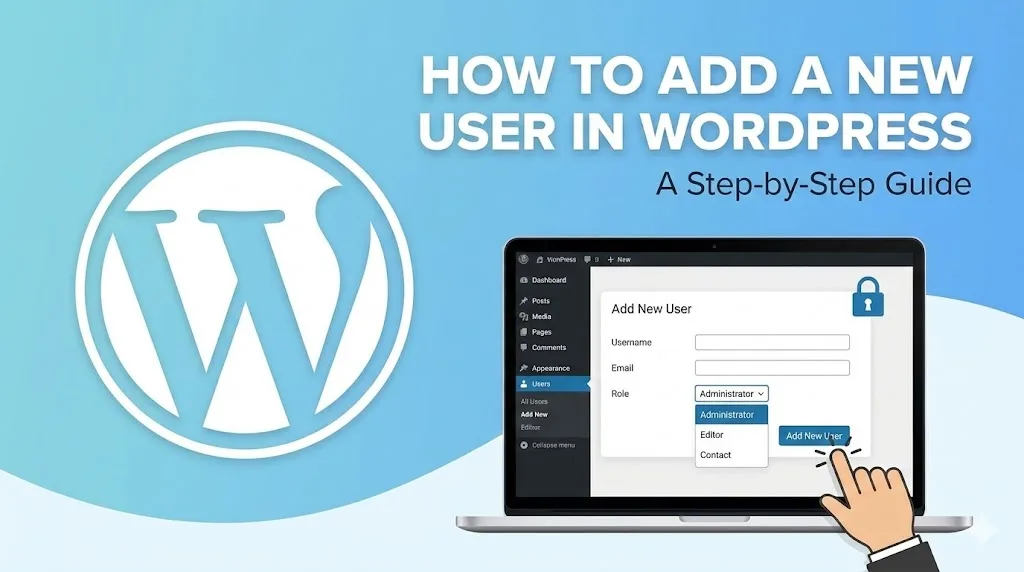
To add a new user to a WordPress website, navigate to the Users section in the administrative dashboard and select Add New User. You must provide a unique username, a valid email address, and assign a specific User Role that defines the level of access and permissions granted to the individual.
Understanding User Management and Security
Managing user access is a fundamental aspect of WordPress security and operational efficiency. By implementing the principle of least privilege (PoLP), site administrators ensure that users only have the permissions necessary to fulfill their specific tasks. This minimizes the risk of accidental data loss or unauthorized configuration changes within the WordPress ecosystem.
In 2026, modern WordPress environments often integrate with external authentication providers or use headless configurations. However, the core process of manual user creation remains the standard for most business websites. Proper role assignment prevents "administrative bloat," where too many users have full control over the site’s backend, Python-driven integrations, or database settings.
Steps to Add a New User in WordPress
Follow these technical steps to manually register a new team member or contributor:
- Access the Dashboard: Log in to your WordPress admin area (typically
yourdomain.com/wp-admin). - Navigate to Users: Click on the Users tab in the left-hand sidebar menu.
- Click Add New User: Select the Add New User button at the top of the screen.
- Enter User Details: Fill in the Username and Email (both required). You may also add a first name, last name, and website.
- Generate a Password: Use the Generate password button to ensure a high-entropy string is created for security.
- Select a Role: Choose the appropriate role from the dropdown menu (see table below).
- Save Changes: Click Add New User to finalize the process and trigger an email notification to the user.
Standard WordPress User Roles
| Role | Permissions Level | Best For |
| Administrator | Full access to all site features and settings. | Site owners and lead developers. |
| Editor | Can publish and manage posts, including those of others. | Content managers and strategists. |
| Author | Can publish and manage their own posts only. | Regular staff writers. |
| Contributor | Can write and manage posts but cannot publish them. | Guest bloggers or freelancers. |
| Subscriber | Can only manage their own profile. | Membership site users. |
Contact TenG Spectrum today for premium digital solutions that ensure your brand remains visible and authoritative in the age of AI search.
Frequently Asked Questions
Find quick answers to common questions about this topic

